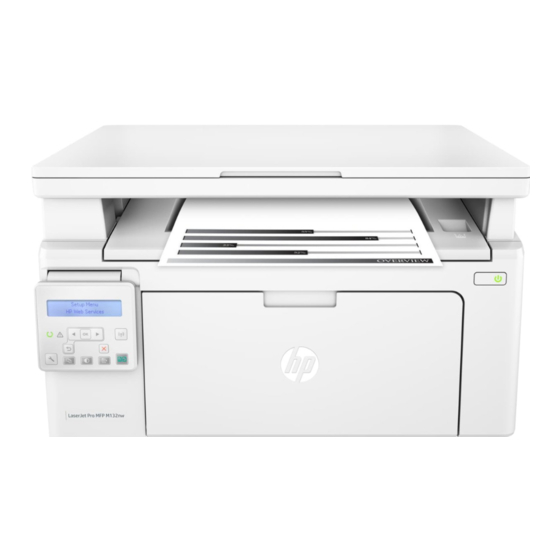
HP LaserJet Pro MFP M129 Guia De Inicio Rapido
Ocultar thumbs
Ver también para LaserJet Pro MFP M129:
- Guía de inicio (49 páginas) ,
- Manual de instrucciones (2 páginas)
Tabla de contenido
Idiomas disponibles
Idiomas disponibles
Enlaces rápidos
LaserJet Pro MFP M129-M132,
LaserJet Ultra MFP M133-M134
Getting Started Guide
IMPORTANT:
Steps 1 - 3
Follow
on
the printer hardware setup
poster, then continue
with
Step
4.
5. Select a connection method
USB connection directly between the
printer and the computer
Use an A-to-B type USB cable.
Windows
1.
For Windows 7 or lower, do not connect the USB cable before installing
the software. The installation process prompts to connect the cable at
the appropriate time. If the cable is already connected, restart the printer
when installation prompts to connect the cable.
2.
Continue to
"6. Locate or download the software installation files."
NOTE: During Windows software installation, select the option to connect
through a network.
Mac
1.
For Mac, connect the USB cable between the computer and the printer
before installing the software.
2.
Continue to
"6. Locate or download the software installation files."
Wired (Ethernet) network connection
(optional)
Use a standard network cable.
1.
Connect the network cable to the printer and to the network. Wait a few
minutes for the printer to acquire a network address.
2.
Continue to
"6. Locate or download the software installation files."
NOTE: During software installation, select the option to Connect through
a network.
www.hp.com/support/ljM129MFP
4. Set up the control panel
At the printer control panel, check the display status before beginning software installation.
www.register.hp.com
Wireless network connection
(wireless models only)
Touchscreen control panels
1.
To connect the printer to a wireless (Wi-Fi) network, on the printer control
panel, touch the Wireless
2.
Touch Wireless Menu, and then touch Wireless Setup Wizard. Select the
network name from the SSID list, or enter the network name if it is not
listed.
3.
Use the keyboard to enter the passphrase, and then touch the OK button.
4.
Wait while the printer establishes a network connection.
5.
On the printer control panel, touch the Network button. If an IP address
is listed, the network connection has been established. If not, wait a few
more minutes and try again. Note the IP address for use during software
installation. Example IP address: 192.168.0.1
6.
To print from a computer, continue with
software installation files."
continue with
"8. Mobile and wireless printing (optional)."
2-line control panels
1.
To connect the printer to a wireless (Wi-Fi) network, make sure that the
printer, access point, and computer are turned on and that the computer
is connected to the wireless network.
2.
A USB cable will be required.
3.
Disconnect any USB or Ethernet cable that is connected to the printer.
4.
To print from a computer, continue with
software installation files."
continue with
"8. Mobile and wireless printing (optional)."
NOTE: During software installation, select the option to Help me set up a
first-time wireless connection.
Manually configure the IP address
See the printer user guide for information on how to manually configure the IP
address www.hp.com/support/ljM129MFP.
1
2
English .............. 1
Français ............ 4
Deutsch ............. 7
Italiano ........... 10
Español ........... 13
Català ............. 16
Dansk ............. 19
Nederlands ...... 22
Eesti ............... 25
Suomi ............. 28
Latviešu .......... 31
Lietuvių .......... 34
Norsk .............. 37
Português ....... 40
Svenska .......... 43
button.
"6. Locate or download the
To print from a phone or tablet only,
"6. Locate or download the
To print from a phone or tablet only,
Tabla de contenido

Manuales relacionados para HP LaserJet Pro MFP M129


Resumen de contenidos para HP LaserJet Pro MFP M129
-
Página 13: Selección Del Método De Conexión
NOTA: Durante la instalación del software, seleccione la opción Conectar a través de una red. Configuración manual de la dirección IP Consulte la Guía del usuario de la impresora para obtener información sobre cómo configurar manualmente la dirección IP www.hp.com/support/ljM129MFP. -
Página 14: Localización O Descarga De Los Archivos De Instalación Del Software
HP Easy Start. Siga las instrucciones en pantalla para instalar el software. Abra la utilidad HP Easy Start y siga las instrucciones que se muestren Cuando se le indique que seleccione un tipo de conexión, seleccione la en la pantalla. -
Página 15: Conexión Del Dispositivo A La Red Inalámbrica
Configuración de HP ePrint a través del correo electrónico (opcional) Utilice HP ePrint a través del correo electrónico para imprimir documentos enviándolos como adjunto de un mensaje de correo electrónico a la dirección de correo de la impresora desde cualquier dispositivo que tenga acceso al correo electrónico, incluso desde dispositivos que no están en la misma red.