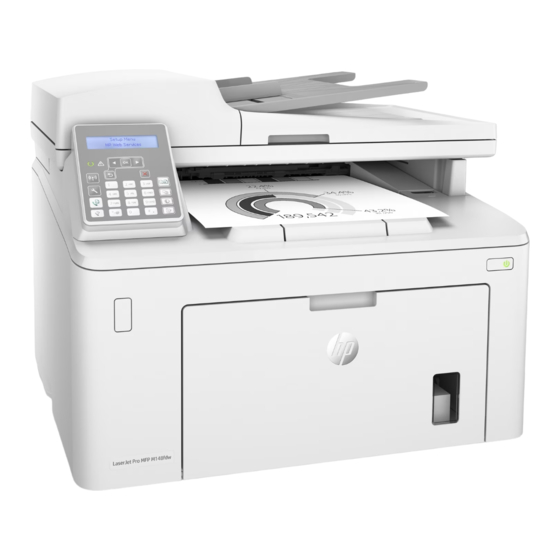
HP LaserJet Pro MFP M148 Guía De Introducción
Tabla de contenido
Idiomas disponibles
Idiomas disponibles
Enlaces rápidos
LaserJet Pro MFP M148-M149
LaserJet Pro MFP M227-M229
LaserJet Ultra MFP 230-M231
Getting Started Guide
www.hp.com/support/ljM148MFP
www.hp.com/support/ljM227MFP
www.register.hp.com
IMPORTANT:
Steps 1 - 3
Follow
on the printer hardware
setup poster, then
continue with
Step
4.
5. Select the connection method
USB connection directly between the
printer and the computer
Use an A-to-B type USB cable.
Windows
1.
Do not connect the USB cable before installing the software. The installation
process prompts to connect the cable at the appropriate time. If the cable is
already connected, restart the printer when installation prompts to connect
the cable.
2.
Continue to
"6. Download and install the software."
OS X
1.
For OS X, connect the USB cable between the computer and the printer
before installing the software.
2.
Continue to
"6. Download and install the software."
Wired (Ethernet) network connection
(optional)
Use a standard network cable.
1.
Connect the network cable to the printer and to the network. Wait a few
minutes for the printer to acquire a network address.
2.
Continue to
"6. Download and install the software."
G3Q74-90961
Need Help? - FAQ
For frequently asked questions, go to
www.hp.com/support/ljM227MFPFAQ
or scan the QR code.
4. Initial setup on the control panel
After turning on the printer, wait for it to initialize. To navigate the control panel, use the arrow buttons and the OK button. Follow the
prompts on the control panel to configure these settings:
• Language
• Location
• Default Settings
Under Default Settings select one of these options:
• Self-managed: Optimized default settings for most users that include guided setup and configuration steps and automatic updates.
• IT-managed: Optimized default settings for fleet manageability.
Settings are fully customizable after initial setup.
NOTE: Select Print Information Page to print a page that instructs how to change the default settings.
M
Wireless network connection
(wireless models only)
Touchscreen control panels
1.
To connect the printer to a wireless (Wi-Fi) network, on the printer control
panel, touch the Wireless button.
2.
Touch Wireless Menu, and then touch Wireless Setup Wizard. Select the
network name from the SSID list, or enter the network name if it is not
listed.
3.
Use the keyboard to enter the passphrase, and then touch the OK button.
4.
Wait while the printer establishes a network connection.
5.
On the printer control panel, touch the Network button. If an IP address
is listed, the network connection has been established. If not, wait a few
more minutes and try again. Note the IP address for use during software
installation. Example IP address: 192.168.0.1
2-line LCD control panels
1.
To connect the printer to a wireless (Wi-Fi) network, make sure that the
printer, access point, and computer are turned on and that the computer
is connected to the wireless network.
2.
A USB cable might be required during software installation.
3.
To print from a computer, continue with
software."
To print from a phone or tablet only, continue with
printing (optional)."
Manually configure the IP address
See the printer user guide for information on how to manually configure the
IP address. See the
"Troubleshooting"
English................. 1
Français ............... 5
Español ............... 9
Português ......... 13
"6. Download and install the
"7. Mobile
section of this guide.
Tabla de contenido

Manuales relacionados para HP LaserJet Pro MFP M148


Resumen de contenidos para HP LaserJet Pro MFP M148
-
Página 9: Configuración Inicial En El Panel De Control
Guía de introducción English....1 LaserJet Pro MFP M148-M149 Français ....5 Español ....9 LaserJet Pro MFP M227-M229 Português ..13 LaserJet Ultra MFP 230-M231 www.hp.com/support/ljM148MFP ¿Necesita ayuda? - Preguntas más frecuentes www.hp.com/support/ljM227MFP Para acceder a las preguntas más frecuentes, www.register.hp.com... -
Página 10: Descarga E Instalación Del Software
Configuración de HP ePrint a través del correo electrónico (opcional) Utilice HP ePrint a través del correo electrónico para imprimir documentos enviándolos como adjunto de un mensaje de correo electrónico a la dirección de correo de la impresora desde cualquier dispositivo que tenga acceso al correo electrónico, incluso desde dispositivos que no están en la misma red. - Página 11 Conecte el cable telefónico suministrado con la impresora al puerto de fax de la impresora y a la toma telefónica de la pared. haga clic en HP y, a continuación, seleccione el nombre de la impresora. • Windows 8.1: En la esquina inferior izquierda de la pantalla, haga clic en la pantalla Inicio y seleccione el nombre de la impresora.
-
Página 12: Uso De La Función De Escaneado
Uso de la función de escaneado Utilice el software HP Scan en el equipo para iniciar un trabajo de escaneado en la impresora. Windows OS X Haga clic en Inicio, seleccione Programas o Todos los programas, después HP y, Vaya a la carpeta Aplicaciones y abra HP Easy Scan.