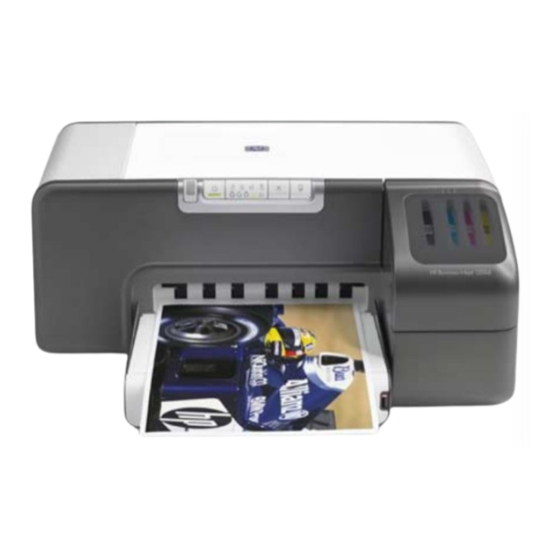
HP Business Inkjet 1200 Guía De Instalación Inicial

Manuales relacionados para HP Business Inkjet 1200


Resumen de contenidos para HP Business Inkjet 1200
- Página 1 Getting Started Guide Guida introduttiva Guia de Primeiros Passos Guía de instalación inicial Oδηγός για τα πρώτα βήµατα ‰Â˘‡¯ ‰ ‰ ÏÚÙ‰Ï Í Í È¯„Ó...
- Página 3 Informações de segurança Información de seguridad Siga sempre as precauções de segurança básicas ao utilizar Siga siempre las precauciones básicas de seguridad al utilizar este produto para reduzir o risco de ferimentos provocados por este producto para reducir el riesgo de lesiones por incendio o incêndios ou choque elétrico.
- Página 4 1) Εκτυπωτής, 2) προσαρµογέας τροφοδοσίας ρεύµατος, Inkjet 1200d/1200dn/1200dtn/1200dtwn), 9) πίσω κάλυµµα 3) καλώδιο τροφοδοσίας ρεύµατος, 4) τέσσερα φυσίγγια πρόσβασης (HP Business Inkjet 1200), 10) δίσκος 2 (εκτυπωτής µελάνης (κυανό, µατζέντα, κίτρινο, µαύρο), 5) τέσσερις κεφαλές HP Business Inkjet 1200dtn/1200dtwn), 11) ανάστροφο καλώδιο...
- Página 5 Atrás da impressora, insira o painel de acesso traseiro (HP Business Inkjet 1200) ou unidade dúplex (HP Business Inkjet 1200d/1200dn/1200dtn/1200dtwn) até ouvir um clique. Paso 1: Retire la cinta y los materiales de embalaje.
- Página 6 HP. Los servicios de impresora o reparación que se requieren por usar cartuchos de tinta que no sean HP no serán cubiertos por la garantía. Βήµα 3: Εγκατάσταση δίσκου 2 (εκτυπωτές HP Business Βήµα...
- Página 7 3) Align each cartridge with its color-coded slot, and then insert Step 5: Install the printheads. the cartridge into the slot. To ensure proper contact, press down 1) Open the top cover. 2) Lift the printhead latch. firmly on the cartridges until they snap into place. Note: All four ink cartridges must be correctly installed for the printer to work.
- Página 8 3) Remove each printhead from its package, and then remove the 5) Pull the printhead latch all the way forward and press down protective tape from each printhead. 4) Insert each printhead into to ensure that the latch is properly engaged. Note: You might its color-coded slot.
- Página 9 Step 6: Load paper in the trays. 3) For paper between 11 inches and 14 inches (356 mm and 279 mm) long, move the latch on the tray to the right; 1) Pull the tray out of the printer. 2) If you are loading tray 1, 4) then lower the front of the tray.
- Página 10 5) Slide the guides in the tray to adjust them for the size that you 7) Lower the output tray (if you loaded tray 1). 8) Gently reinsert are loading. 6) Insert up to 150 sheets of paper into tray 1 or the tray.
- Página 11 Step 7: Connect the power cord and turn on the printer. To ensure the best possible print quality, the printer aligns the printheads. At the beginning of the alignment process, the Power 1) Connect the power adapter into the printer. 2) Connect the light blinks and the printer prints a status page.
- Página 12 Note: If other printer lights are lit during the printhead alignment 3) Make sure the rear-access panel or the auto-duplex unit is process, see “Interpreting control panel lights” on page 17. installed. 4) Turn off the printer, and then turn it on again. If the alignment page does not print, follow these steps.
- Página 13 Step 8: Connect the printer. USB or parallel connection: 1) Insert the Starter CD into the CD drive. 2) Follow the onscreen instructions for your connection See the following instructions for your connection type (USB, parallel, wireless network, or wired network). For more information and connect the USB ( ) or parallel ( ) (sold separately)
- Página 14 Wireless connection: 1) Obtain the following information: 2) Remove the protective cover from the network port. the network name (SSID), communication mode (infrastructure or 3) Temporarily connect the cross cable to the printer’s network ad hoc), and the type of security the network uses (such as WPA, port and the computer.
- Página 15 WAN o Uplink en el dispositivo, conmutador o enrutador usarla. Para obtener más información acerca de cómo compartir de red. No enchufe el cable cruzado (del modelo HP Business la impresora en una red, consulte la guía del usuario en pantalla.
- Página 16 If you did not register your printer while installing the you use frequently to ensure that the software is installed software, you can register later at http://www.register.hp.com. correctly. If the document does not print, see “Troubleshooting” on page 17.
- Página 17 πληροφορίες για τη χρήση του εκτυπωτή και την αντιµετώπιση προβληµάτων, ανατρέξτε στα εξής βοηθήµατα: • Τις ηλεκτρονικές οδηγίες χρήσης και το αρχείο Readme που περιέχονται στο CD εκκίνησης. • To HP Instant Support (δείτε τις οδηγίες χρήσης στην οθόνη) • Την τοποθεσία υποστήριξης προϊόντος http://www.hp.com/support/businessinkjet1200...
-
Página 39: Solución De Problemas
Para obtener más información acerca de las luces del panel de control, consulte la guía del usuario en pantalla en el Starter CD o visite el sitio Web de soporte del producto en http://www.hp.com/support/businessinkjet1200. Patrón de luces del panel de control Explicación y acción recomendada... - Página 40 Asegúrese de que el panel de acceso posterior de la impresora (HP Business Inkjet 1200) o la unidad automática de doble cara (HP Business Inkjet 1200d/1200dn/1200dtn/1200dtwn) estén insertados por completo en la parte posterior de la impresora.
-
Página 41: Comprensión De Las Piezas Del Conector De Red
La luz de alimentación está encendida. Una o más Un cartucho de tinta no tiene tinta y debe reemplazarse antes de que pueda luces indicadoras de color parpadean. seguir con la impresión. Reemplace el cartucho de tinta indicado. Comprensión de las piezas del conector de red 1) Luz de actividad 2) Conector de red 3) Luz de enlace... -
Página 42: Problemas Durante La Instalación Del Software
Léame y las notas de la versión o visite el sitio Web de soporte del Si no puede instalar el software de la impresora, compruebe que: producto en http://www.hp.com/support/businessinkjet1200. Todas las conexiones de cable al equipo y a la impresora estén seguras. -
Página 43: Solución De Problemas Y Herramientas De Configuración
La dirección IP para la impresora aparece en la página de Si necesita llamar a HP, imprima esta página antes de hacer la configuración. llamada. Después de abrir EWS, puede agregarlo a los favoritos, para poder Para imprimir una página de configuración... -
Página 44: Configuración De Opciones De Seguridad
Para configurar las opciones de seguridad Espere dos minutos para que la impresora obtenga una dirección Conecte un cable cruzado (incluido en el modelo HP Business IP, luego presione el botón de la página de configuración de la Inkjet 1200dtwn) a la impresora y al equipo. - Página 45 Abra el Selector y luego seleccione el icono hp inkjet 6.x . impresora, haga clic en Yes (Sí). Nota: Si no puede ver el icono hp inkjet 6.x , inserte el Starter CD en Seleccione la impresora y luego cierre el Selector.
-
Página 57: Declaración De Garantía Limitada De Hewlett-Packard
4 Para los productos de impresora de HP, el uso de un cartucho de tinta TEORÍA LEGAL, Y AUNQUE SE HAYA AVISADO DE LA que no sea de HP o de un cartucho de tinta rellenado no afecta ni a la POSIBILIDAD DE TALES DAÑOS.