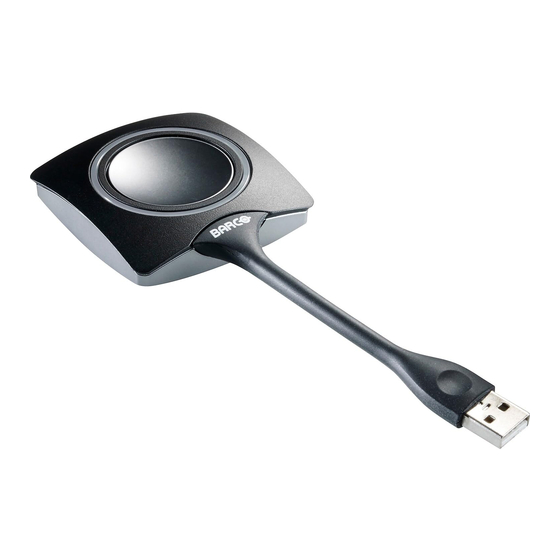
Barco ClickShare Manual De Instrucciones
Ocultar thumbs
Ver también para ClickShare:
- Guia rápido ,
- Manual de instrucciones (97 páginas) ,
- Manual de seguridad (95 páginas)
Idiomas disponibles
Idiomas disponibles
Enlaces rápidos
ClickShare
The one click wonder
Step 1:
Insert a Button into your laptop.
Step 2:
On your laptop, browse to the ClickShare drive and start
the ClickShare application: ClickShare_for_Windows or ClickShare_for_Mac.
Step 3:
Wait till the LEDs of the Button are static white, and then click the Button
to show your screen on the display.
The LEDs of the Button will be red.
Click again to remove your screen from the display.
At the end of your meeting, please place the Buttons back into the Tray.
www.barco.com/ClickShare
R5900002_01
August 8th, 2012
Barco
President Kennedypark 35
B-8500 Kortrijk

Manuales relacionados para Barco ClickShare


Resumen de contenidos para Barco ClickShare
- Página 4 ClickShare: ClickShare_for_Windows o ClickShare_for_Mac. Paso 3: Espere hasta que el LED de ClickShare Button esté fijo en color blanco y haga click para mostrar la pantalla de su ordenador en el dispositivo de visualización. El LED de ClickShare Button será rojo.
- Página 13 Passo 1: Inserte un Button en el portátil. Passo 2: En el portátil, desplácese a la unidad de ClickShare e inicie la aplicación ClickShare: ClickShare_para_Windows o ClickShare_para_Mac. Passo 3: Espere hasta que los LED de Button estén fijos de color blanco y haga clic en el Button para mostrar la pantalla en el dispositivo.