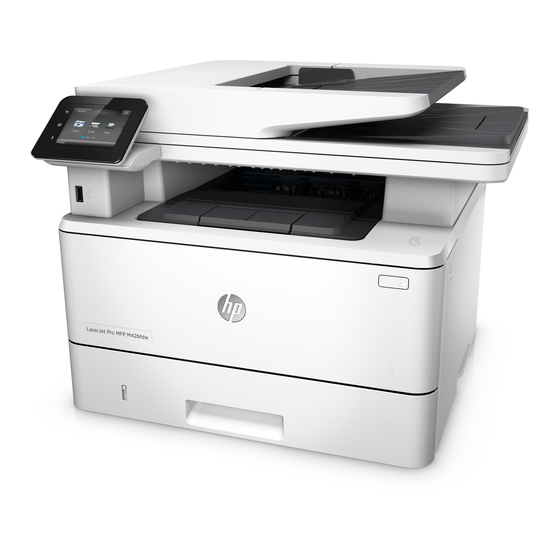
HP LaserJet Pro M426 Guía De Inicio
Tabla de contenido
Idiomas disponibles
Idiomas disponibles
Enlaces rápidos
LaserJet Pro MFP M426, M427
Getting Started Guide
IMPORTANT:
Steps 1 - 2
Follow
on
the printer hardware setup
poster, then continue
with Step 3.
4. S elect a connection method and prepare for software installation
U SB connection directly between the
printer and the computer
Use an A-to-B type USB cable.
Windows
1.
For Windows 7 or lower, do not connect the USB cable before installing
the software. The installation process prompts to connect the cable at
the appropriate time. If the cable is already connected, restart the printer
when installation prompts to connect the cable.
2.
Continue with
"5. Locate or download the software installation files."
N OTE: During software installation, select the option to Directly connect
this computer using a USB cable.
Mac
1.
For Mac, connect the USB cable between the computer and the printer
before installing the software.
2.
Continue with
"5. Locate or download the software installation files."
Wired (Ethernet) network connection
Use a standard network cable.
1.
Connect the network cable to the printer and to the network. Wait a few
minutes for the printer to acquire a network address.
2.
On the printer control panel, touch the Connection Information
button. If an IP address is listed, the network connection has been
established. If not, wait a few more minutes and try again. Note the
IP address for use during software installation. Example IP address:
192.168.0.1
If the printer does not display the network address on the Home screen,
manually configure the IP address on the control panel. To manually
configure the IP address, see
3.
Continue with
"5. Locate or download the software installation files."
N OTE: During software installation, select the option to Connect through
a network.
www.hp.com/support/ljM426MFP
www.hp.com/support/ljM427MFP
3. I nitial setup on the control panel
After turning on the printer, wait for it to initialize. Follow the prompts and use the arrow keys on the
control panel to configure these settings:
•
Language
•
Location
•
Default settings
Under Default Settings select one of these options:
•
Self-managed: Optimized default settings for a guided experience on setups, configurations,
and updates.
•
IT-managed: Optimized default settings for fleet manageability with enhanced security.
Settings are fully customizable after initial setup.
"Manually configure the IP address."
www.register.hp.com
B uilt-in wireless network connection
(dw and fdw wireless models only)
1.
Touch the Connection Information
2.
Touch the Network Wi-Fi OFF button.
3.
Touch the Settings button.
4.
Touch the Wireless Setup Wizard item.
5.
Select the correct network SSID from the list. If you do not see the SSID,
touch Enter SSID and provide the network SSID manually.
6.
Use the keyboard to enter the passphrase, and then touch the OK button.
7.
Wait while the printer establishes a network connection.
8.
Touch the Connection Information
listed, the network connection has been established. If not, wait a few
more minutes and try again. Note the IP address for use during software
installation. Example IP address: 192.168.0.1
9.
To print from a computer, continue with
software installation files."
continue with
"7. Mobile and wireless printing."
N OTE: During software installation, select the option to Connect through
a network. (Windows only)
Manually configure the IP address
For information on how to manually configure the IP address, see the printer
User Guide
www.hp.com/support/ljM426MFP
www.hp.com/support/ljM427MFP.
1
2
English .............. 1
Français ............ 4
Deutsch ............. 7
Italiano ........... 10
Español ........... 13
Català ............. 16
Dansk ............. 19
Nederlands ...... 22
Eesti ............... 25
Suomi ............. 28
Latviešu .......... 31
Lietuvių .......... 34
Norsk .............. 37
Português ....... 40
Svenska .......... 43
button.
button. If an IP address is
"5. Locate or download the
To print from a phone or tablet only,
or
Tabla de contenido

Manuales relacionados para HP LaserJet Pro M426


Resumen de contenidos para HP LaserJet Pro M426
-
Página 13: Guía De Inicio De Laserjet Pro Mfp
English ....1 Guía de inicio de LaserJet Pro MFP Français .... 4 M426 y M427 Deutsch ..... 7 Italiano ... 10 www.hp.com/support/ljM426MFP www.register.hp.com Español ... 13 www.hp.com/support/ljM427MFP IMPORTANTE: Català ..... 16 pasos 1-2 Siga los Dansk ..... 19 3. C onfiguración inicial en el panel de control folleto de configuración del Nederlands ..22 Después de encender la impresora, espere a que se inicialice. -
Página 14: Localización O Descarga De Los Archivos De Instalación Del Software
El programa de instalación del software detecta el idioma del sistema operativo y, después, muestra el menú principal del programa de instalación en ese idioma. Siga las instrucciones en pantalla para instalar el software. Al final del proceso de instalación del software, utilice el Asistente de configuración de Utilidad de HP para configurar las opciones de la impresora. -
Página 15: Conexión Del Dispositivo A La Red Inalámbrica
® ® ® Haga clic en Inicio y seleccione Programas o Todos los programas, HP, la carpeta de la impresora HP y, a continuación, Ayuda. Windows ® En la pantalla Inicio, haga clic con el botón derecho en un área vacía de la pantalla, en Todas las aplicaciones en la barra de aplicaciones, en el icono que tiene el nombre de la impresora y, a continuación, seleccione Ayuda.