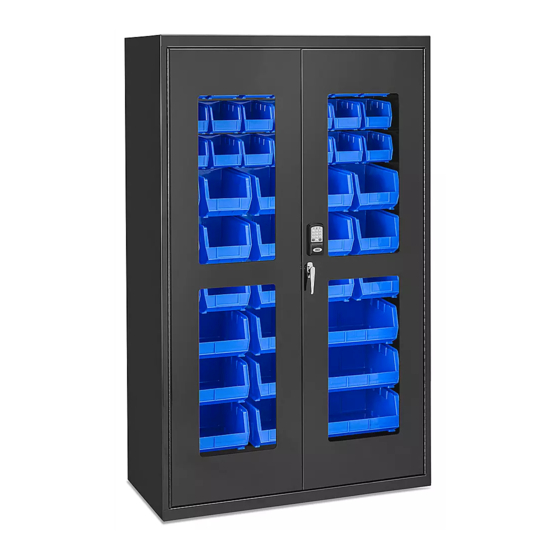
Uline H-9015 Manual Del Usuario
Idiomas disponibles
Idiomas disponibles
H-9015
ACCESS CONTROL
CABINET
TOOLS NEEDED
Laptop
Flash Drive
(Included)
NOTE: There are additional settings and
customization within the software that go
beyond what is explained in these instructions.
For additional information, click Help > Manuals
on the top left of the laptop screen for more
information once signed into the software.
NOTE: The following information is based on
LockView 5.6.0 Software. Newer software might
have updated screens and instructions.
The software downloaded will have the most
recent manuals and instructions by clicking
Help > Manuals on the top left of the screen
once signed in.
SOFTWARE INSTALLATION AND ACTIVATING
LICENSE
WARNING: Software license may only be
used with one laptop and cannot be moved
once activated. Choose a laptop that can be
moved within 6' of the cabinet to connect USB
cable for data sync.
NOTE: Keep flash drive after installing software
and activating license. Write down Crypkey S/N
located at the back of the flash drive and store
in a secure location. (See Figure 1)
Figure 1
PAGE 1 OF 18
1-800-295-5510
uline.com
USB Cable
(Included)
OPERATION
1.
2. Plug in flash drive and download LockView software
3. Double click LockView icon to open software.
4. To register software license, select Online Activation
5. Follow prompts to complete license activation.
Pour le français, consulter les pages 13-18.
For the quickest registration process, ensure laptop
is connected to WiFi.
to laptop.
on opening screen. (See Figure 2)
Figure 2
Para Español, vea páginas 7-12.
0221 IH-9015
Tabla de contenido

Manuales relacionados para Uline H-9015


Resumen de contenidos para Uline H-9015
-
Página 7: Gabinete Con Control De Acceso
H-9015 800-295-5510 uline.mx GABINETE CON CONTROL DE ACCESO HERRAMIENTAS NECESARIAS Laptop Memoria USB Cable USB (incluida) (incluido) FUNCIONAMIENTO Para un proceso de registro más rápido, asegúrese NOTA: Hay configuraciones y modificaciones personalizadas adicionales en el software que de que la laptop esté conectada a WiFi. -
Página 8: Continuación De Funcionamiento
CONTINUACIÓN DE FUNCIONAMIENTO 6. Abra el icono del software LockView. Para iniciar sesión 2. Seleccione Agregar Operador (Add Operator). por primera vez, ingrese admin como nombre del Ingrese el nuevo nombre del operador y cree la operador y la contraseña. Esto está preestablecido contraseña. - Página 9 CONTINUACIÓN DE FUNCIONAMIENTO AGREGAR UN CANDADO AUTOMÁTICAMENTE 2. Seleccione Agregar Candado (Add Lock). Ingrese un nombre de candado personalizado para el Seleccione la pestaña Asistentes (Wizards) en el candado. Ingrese el número de serie y el código de lado izquierdo de la pantalla. (Vea Diagrama 6) configuración que se encuentran en la etiqueta verde que llegó...
- Página 10 CONTINUACIÓN DE FUNCIONAMIENTO 6. Seleccione 9 Voltios (9 Volts) para el voltaje de Diagrama 9 bloqueo. El Bloqueo por Credencial Incorrecto (Bad Credential Lockout) le permite al operador restringir el acceso al candado si se ingresan varios intentos no válidos. Personalice el número de intentos incorrectos y los minutos en los que se introdujeron intentos incorrectos y la duración que el usuario permaneció...
- Página 11 CONTINUACIÓN DE FUNCIONAMIENTO d. Las Restricciones Basadas en el Tiempo / Grupos b. El operador puede ordenar por nombre de (Time-based Restrictions / Groups) le permiten al candado o nombre de usuario o grupo. El operador establecer intervalos específicos para proceso es igual para cada método.
- Página 12 (Vea Diagrama 12) iv. Regresar a la pantalla principal del Asistente (Wizard) Diagrama 12 2. Elija qué tarea completar. El usuario será guiado paso por paso hasta terminar. 800-295-5510 uline.mx PAGE 12 OF 18 0221 IH-9015...