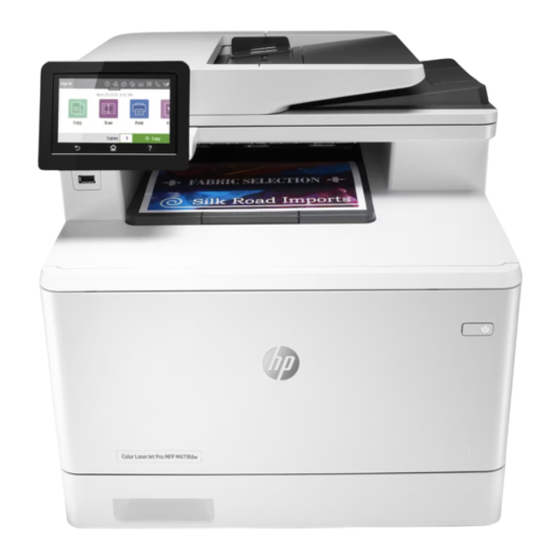
HP Color LaserJet Pro MFP M479 Guía De Introducción
Tabla de contenido
Idiomas disponibles
Idiomas disponibles
Enlaces rápidos
Color LaserJet Pro MFP M479
Getting Started Guide
NOTE:
An internet connection is required to set up the printer and download the software driver.
FAQ
For frequently asked questions, go to
or scan the QR code.
IMPORTANT:
Steps 1 - 3
Follow
on the
printer hardware setup
poster, then continue
Step
4.
with
5. Download and install the software
5.
NOTE:
Do not connect the USB cable until you are prompted to do so.
Method 1: Download HP Easy Start (Windows and macOS)
HP Easy Start will detect the printer, assist with selecting the printer connection
type (USB, Wired, or Wireless), and install the software.
From the computer, go to 123.hp.com/laserjet, and click Download.
1.
2.
Run HP Easy Start.
3.
When prompted to select a connection type, select the appropriate option for the
type of connection.
NOTE: If HP Easy Start does not detect the printer or the software does not install
automatically, go to Method 2: Manually download from printer support website
(Windows).
Troubleshooting Tips
The installation software might not detect the printer during wireless setup. Follow the steps below to connect the printer to the same wireless network
as the computer.
From the Home screen on the printer control panel, swipe the tab at the top of the screen downward to open the Dashboard, and then touch the Wireless
1.
Touch the Setup
2.
icon.
Touch Wireless Settings.
3.
Touch Wireless Setup Wizard.
4.
5.
Follow the display instructions to complete the setup.
Reinstall the software using Method 1 or Method 2 above.
6.
www.hp.com/support/colorljm479mfp
www.hp.com/support/colorljM479MFPFAQ
4. Set up the control panel
4.
After turning on the printer, wait for it to initialize. To navigate the touchscreen control panel, use touch, swipe, and scroll gestures.
Follow the prompts on the control panel to configure Language, Country/Region, Date/Time, and Self-managed or IT-managed.
• Self-managed: Optimized default settings for most users that include guided setup and configuration steps and automatic
updates.
• IT-managed: Optimized default settings for fleet manageability.
Follow additional prompts to complete control panel setup.
Settings are fully customizable after initial setup.
Connect the printer to a wireless network (wireless models only)
www.register.hp.com
Method 2: Manually download from printer support website
(Windows)
1.
From the computer, go to www.hp.com/support/colorljm479mfp.
Select Software and drivers.
2.
3.
Download the software for your printer model and operating system.
4.
Launch the software file from the folder where the file was saved.
5.
Follow the onscreen instructions to install the software.
6.
When prompted to select a connection type, select the appropriate option for the
type of connection.
Manually configure the IP address
See the printer user guide for information on how to manually configure the IP
address at www.hp.com/support/colorljm479mfp.
2
English................. 1
Français ............... 5
Español ............... 9
Português ......... 13
繁體中文........... 17
icon.
Tabla de contenido

Manuales relacionados para HP Color LaserJet Pro MFP M479


Resumen de contenidos para HP Color LaserJet Pro MFP M479
-
Página 9: Color Laserjet Pro Mfp M479 Guía De Introducción
NOTA: Si HP Easy Start no detecta la impresora o la instalación de software no se inicia automáticamente, realice los pasos del Método 2: Descarga manual desde Configuración manual de la dirección IP el sitio Web de soporte de la impresora (Windows). -
Página 10: Obtener Más Información Sobre La Impresión Móvil
2. En la pantalla Detalles de Wi-Fi Direct, abra el menú de configuraciones de NOTA: Es posible que la aplicación HP Smart no esté disponible para todos los Wi-Fi Direct. Toque el conmutador para cambiar el estado de Wi-Direct Status sistemas operativos de los dispositivos móviles. -
Página 11: Conexión De La Impresora
1. Abra HP Printer Assistant. • Windows 10: En el menú de inicio, haga clic en Todas las aplicaciones (si está disponible la opción), haga clic en HP y, luego, seleccione el nombre de la impresora. • Windows 8.1: Haga clic en la flecha hacia abajo en la esquina inferior izquierda de la pantalla de inicio y seleccione el nombre de la impresora. -
Página 12: Solución De Problemas
Uso de la función de escaneo Windows macOS Use el acceso directo a la aplicación HP Scan en el escritorio o abra HP Printer Vaya a la carpeta Aplicaciones y abra HP Easy Scan. Assistant. Seleccione Escaneo y, luego, seleccione Escanear un documento o una foto.