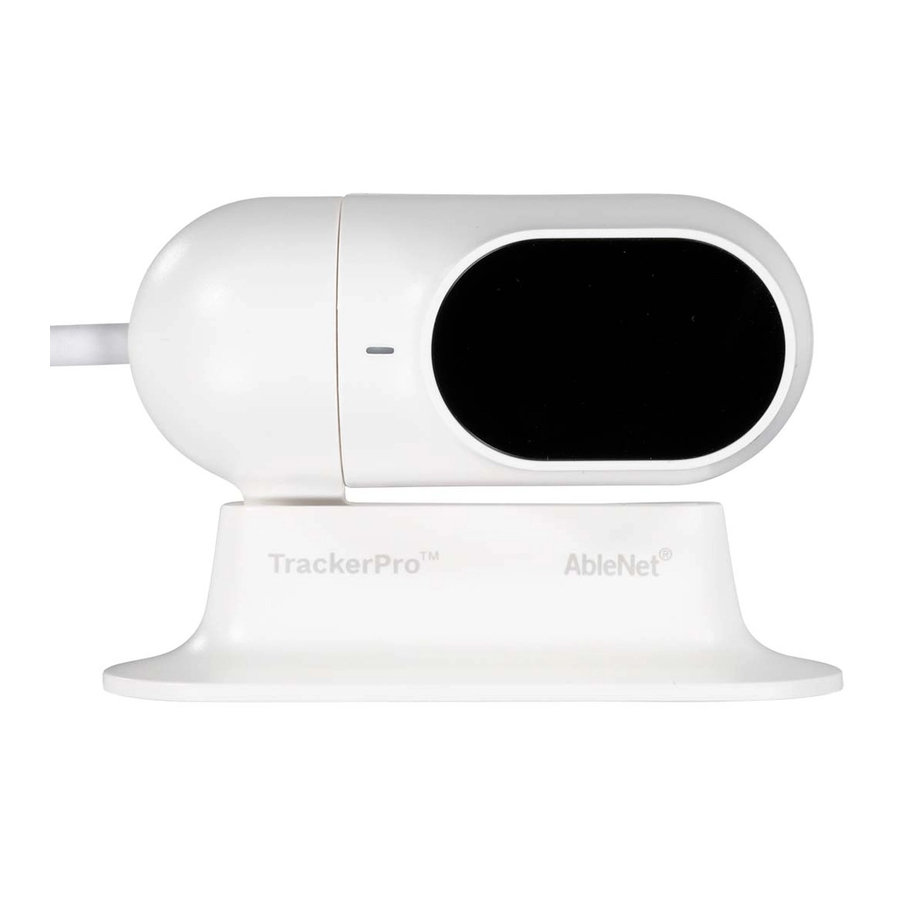
AbleNet TrackerPro 2 Guia De Inicio Rapido
Ocultar thumbs
Ver también para TrackerPro 2:
- Manual de instrucciones (9 páginas) ,
- Guia de inicio rapido (8 páginas)
Tabla de contenido
Idiomas disponibles
Idiomas disponibles
Enlaces rápidos
TrackerPro
www.ablenetinc.com
(800) 322-0956
Getting Started:
1.
Place TrackerPro 2 directly in front of the user.
TrackerPro 2 can be attached to a monitor using the
included dual lock or placed on a flat surface using
the included desktop stand.
2.
Plug TrackerPro 2 into available USB Type A port on
computer. The Power/Status LED on TrackerPro 2 will
turn red.
3.
Place a TrackerPro 2 reflective dot on forehead of user.
4.
Position user 12-in to 36-in (30-cm to 91-cm) away
from TrackerPro 2.
5.
The Power/Status LED on TrackerPro 2 will turn green
once it detects the reflective dot on the user.
6.
Small head movements will move the mouse cursor
on the computer. If the user is unable to move the
mouse cursor across the entire screen, try adjusting
the mouse cursor speed.
2
™
USB Type A
Connection
Right Mouse Click
Left Mouse Click
Mouse Click Options:
•
Plug one or two switches into TrackerPro 2. The white
switch jack is for left mouse click and the black switch
jack is for right mouse click.
•
For use without switches, use a dwell selection
software.
•
Windows: Dwell Clicker 2 (purchased separate)
•
macOS Mojave or newer: Dwell selection is part
of the accessibility settings for the keyboard
•
Google Chrome OS: Dwell selection is part of the
accessibility settings
Power/Status LED
Mouse Cursor Speed Adjustment:
•
On the back of TrackerPro 2, move the speed selector
switch to change mouse cursor speed.
•
I = slow
•
II = fast
•
For more control, find the mouse cursor speed
adjustment within the computer operating system
Speed Select
(On Back)
Dual Lock
Desktop Stand
Updated March 13, 2019 5:21 PM
Tabla de contenido

Manuales relacionados para AbleNet TrackerPro 2


Resumen de contenidos para AbleNet TrackerPro 2
-
Página 4: Introducción
Tracker Pro ™ Conexión USB tipo A Clic con el botón www.ablenetinc.com derecho del ratón Selección de (800) 322-0956 velocidad (en la Clic con el botón Led encendido/en carga izquierdo del ratón parte posterior) Adhesivo Dual Lock Soporte de escritorio Introducción: Opciones del botón del ratón: Indicadores de velocidad del cursor del ratón:... -
Página 7: Warranty & Contact Information
Hinweise zur Garantie und Kontaktinformationen AbleNet manufactured products include a two-year limited Les produits AbleNet sont assortis d’une garantie limitée de deux warranty. This warranty is against defects in materials and ans. Cette garantie protège contre les défauts de matériel et les Für alle von AbleNet hergestellten Produkte gilt eine zweijährige... - Página 8 • Aumente a distância entre o equipamento e o receptor. • 困ったことがあれば AbleNet 技術サポートまたは最寄りの代理店 • Aumente la distancia de separación entre el equipo y el receptor. • Consulte o suporte técnico da AbleNet ou o seu distribuidor にご相談ください。 • Contacte con el servicio técnico de AbleNet o con su local para obter ajuda.