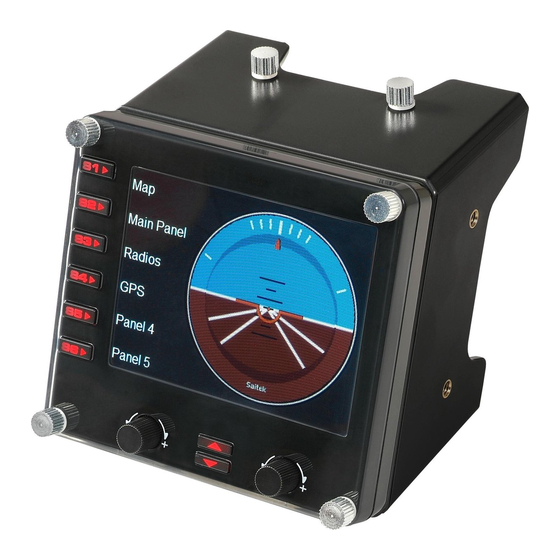
Saitek PRO FLIGHT Manual De Instrucciones
Idiomas disponibles
Idiomas disponibles
Enlaces rápidos
SAITEK PRO FLIGHT INSTRUMENT PANEL
Congratulations on buying the Saitek Pro Flight Instrument Panel. The Instrument
Panel interacts in real time with Microsoft Flight Simulator X to display a choice of
cockpit screens, improving control and making your flying experiences more realistic.
Installing the Instrument Panel
To use the Instrument Panel as a standalone device, simply extend the support stand
at the back of unit as shown.
You can also fix the panel to the supplied mounting bracket. Insert the screws
through the holes at the corners of the panel into the bracket behind and tighten. If
you already own a Saitek Pro Flight Yoke System, you can mount the panel and
bracket on top of the yoke unit using the screws provided.
Installation for users of Windows® XP, XP64 and Vista
Important: Do not connect the Flight Instrument Panel's USB cable to your PC
before installing the driver software.
1. With your computer switched on, close down any programs that are currently
running and insert the Installation CD into your CD or DVD drive.
2. If the CD does not run automatically, select Start from the Windows® Taskbar,
1

Manuales relacionados para Saitek PRO FLIGHT


Resumen de contenidos para Saitek PRO FLIGHT
- Página 23 7. Para los usuarios de XP, aparecerá el Nuevo Asistente de Hardware preguntando "¿Puede Windows conectarse a Windows Update para buscar software?". un Sistema Pro Flight Yoke Saitek, puede montar el panel y el soporte encima de la Seleccione "No en este momento" y haga clic en Siguiente (Next). Para los unidad yoke utilizando los tornillos suministrados.
- Página 24 Si pasa esto, por favor reinstale el software de panel de instrumentos. el Panel Conmutador Pro Flight antes de instalar el FS X. Para registrar el Panel Conmutador Pro Flight con FS X, haga clic en el icono "Iniciar manualmente el Resolución de problemas...
- Página 25 Botones adicionales Cliente = El PC que estará enlazado al Servidor vía la LAN (Red de Área Local). Los paneles de instrumentos estarán conectados a este PC para aliviar el estrés de Los seis botones a la izquierda del panel de instrumentos abren pantallas o procesamiento de tener múltiples pantallas conectadas a un PC.
- Página 26 • En el PC cliente, inicie SaiFlightSimX.exe máquina Servidor y el número de puerto al configurar la máquina cliente. Localizar en: C:\Program Files\Saitek\DirectOutput\ En el PC Cliente Nota: Si parece que no sucede nada, abra el Administrador de Tareas (Task 5.
- Página 27 Saitek en el producto o modificación de Si experimenta alguna dificultad con este producto, rogamos que visite este producto de cualquier manera o la incorporación de este producto en...
- Página 28 Vlo te USB konektor do volného USB portu Vašeho PC. que compruebe cuidadosamente que ha leído y seguido las instrucciones de este Vlo te CD-ROM prilo ený Saitek Pro Flight Instrument Panel do mechaniky pro manual. ctení CD Vašeho PC. Jakmile PC detekuje CD, postupujte dle instrukcí na 7.
- Página 31 All other trademarks or registered trademarks are the property of their respective owners. © 2009 Mad Catz Interactive Asia. Saitek, Saitek logo et Pro Flight sont des marques de commerce ou des marques déposées de Mad Catz Interactive Asia et de ses filiales ou sociétés apparentées. Saitek est une filiale de Mad Catz Interactive, Inc., une société...