Manual de 8BitDo NES30 Pro
- 1 INICIO RÁPIDO
- 2 Modos
- 3 Para apagar el mando
- 4 Para conectar el joystick NES30 Pro a otro dispositivo
- 5 Para dos jugadores (iOS/Mac OSX/Android/PC)
- 6 Modo(s) multijugador
- 7 Modo 1, 2 y 3
- 8 Modo 4 (Modo de pantalla táctil Emu)
- 9 Modo 5 (Modo de cable USB de Windows)
- 10 Actualizar el firmware a través de PC o Mac
- 11 Estado de la(s) luz(ces) LED
- 12 DECLARACIÓN DE LA FCC
- 13 Referencias
- 14 Descargar el manual
- 15 En otros idiomas
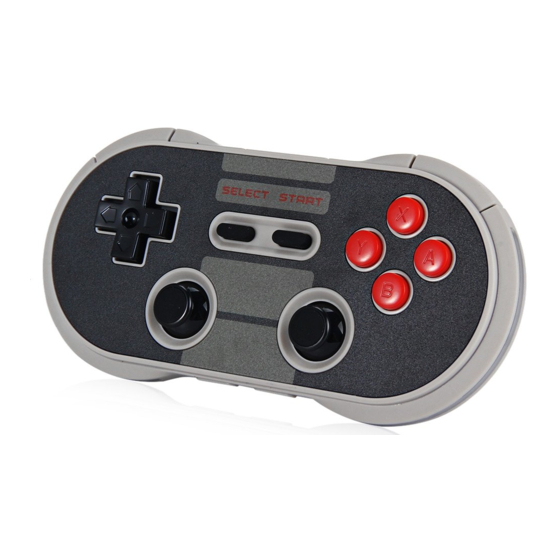
El GamePad NES30 Pro es compatible con muchos dispositivos y plataformas gracias a los múltiples modos entre los que puede cambiar. PC, Smartphone, iPad, Notebook, Android, iOS, MacOSX, Windows son compatibles. Esto hace que el GamePad NES30 Pro sea ideal para todos los sistemas y dispositivos populares.
INICIO RÁPIDO
| Mode1 | Mode2 | Mode3 | Mode4 | Mode5 | |
| Joystick | Bluetooth Keyboard (Teclado Bluetooth) | iCade | Emu-Touch Screen (Pantalla táctil Emu) | USB Joystick | |
| Power ON (Mantenga pulsada la tecla durante 3 segundos) | Power (Encender) | Power+B (Encender+B) | Power+A (Encender+A) | Power+X (Encender+X) | Power on first, then connect USB cable (Encender primero, luego conectar el cable USB) |
| Blue LED (LED Azul) | 1 times per second (1 vez por segundo) | 2 times per second (2 veces por segundo) | 3 times per second (3 veces por segundo) | 4 times per second (4 veces por segundo) | Can be ignored (Puede ser ignorado) |
| Support system (Sistema compatible) | Windows, Android | Windows, Mac OS, Android, iOS | Android, iOS | Android | Windows |
| Memo | PC can use Bluetooth Adapter. (El PC puede usar un adaptador Bluetooth.) | Exclusive support FOUR players (Soporte exclusivo para CUATRO jugadores) | Input method should be English. (El método de entrada debe ser inglés.) | Need ROOT (Necesita ROOT) | Also charge GamePad battery (También carga la batería del GamePad) |
⠀
| Bluetooth Keyboard (2P) (Teclado Bluetooth (2P)) | 360 (Xinput) | PC Joystick | |
| Power on (Mantenga pulsada la tecla durante 3 segundos) | Power+B+R (Encender+B+R) | Power+R1 (Power on first, then connect USB cable) (Encender+R1 (Encender primero, luego conectar el cable USB)) | Power+R1 (Encender+R1) |
| Blue LED (LED Azul) | 2 times per second (2 veces por segundo) | 1 times per second (1 vez por segundo) | 1 times per second (1 vez por segundo) |
| Support system (Sistema compatible) | Windows, Mac OS, Android, iOS | Windows PC, Mac OSX | Windows PC |
| Memo | Multiplayer supported, Dual keyboard code system (Multijugador soportado, Sistema de código de teclado dual) | Connecting to PC and it will be recognized as a 360 console, don't need any setting for 360 games, you have to download an 360 console driver for Mac. (Al conectarse al PC, se reconocerá como una consola 360, no necesita ninguna configuración para los juegos de 360, tiene que descargar un controlador de consola 360 para Mac.) | The Bluetooth conneection is the difference between PC mode and 360 mode, the buttons value also not the same. (La conexión Bluetooth es la diferencia entre el modo PC y el modo 360, el valor de los botones tampoco es el mismo.) |
Modos
- For Android devices, use Mode 1. (Para dispositivos Android, utilice el Modo 1.)
- For iOS devices, use Mode 2 or 3. (Para dispositivos iOS, utilice el Modo 2 o 3.)
- For games that only support touchscreen controls, use Mode 4. (Para juegos que solo admiten controles de pantalla táctil, utilice el Modo 4.)
Para apagar el mando
Hold down button for 3 seconds. (Mantenga pulsado el botón durante 3 segundos.)
Para conectar el joystick NES30 Pro a otro dispositivo
Delete pairing information of NES30 pro. Holding the button down for more than 3 seconds. When both LED lights have flashed once, NES30 Pro can be connected to other devices. (Elimine la información de emparejamiento de NES30 pro. Mantenga pulsado el botón durante más de 3 segundos. Cuando ambas luces LED hayan parpadeado una vez, NES30 Pro se puede conectar a otros dispositivos.)
- Connect the NES30 Pro GamePad to another device. (Conecte el GamePad NES30 Pro a otro dispositivo.)
- Change between Mode 1, 2 or 3. (Cambie entre el Modo 1, 2 o 3.)
- Request password (to pair), if not "0000". (Solicite la contraseña (para emparejar), si no es "0000".)
Note: Make sure the battery of the NES30 Pro is not empty. Otherwise use the USB-cable to charge the device. (Nota: Asegúrese de que la batería del NES30 Pro no esté vacía. De lo contrario, utilice el cable USB para cargar el dispositivo.)
More: http://www.8bitdo.com/nes30pro/Faq.html
Para dos jugadores (iOS/Mac OSX/Android/PC)
Player 1 press Power + B to power on the NES30 Pro. (LED light will blink twice.) (Jugador 1 pulse Power (Encender) + B para encender el NES30 Pro. (La luz LED parpadeará dos veces.))
Player 2 press Power + B + R to power on the NES30 Pro.(LED light will blink once, for a longer period of time.) (Jugador 2 pulse Power (Encender) + B + R para encender el NES30 Pro. (La luz LED parpadeará una vez, durante un período de tiempo más largo.))
Both NES30 Pro will provide a different key code password to work with Bluetooth. The mapping of the keys can be done in game. (Ambos NES30 Pro proporcionarán una contraseña de código clave diferente para funcionar con Bluetooth. El mapeo de las teclas se puede hacer en el juego.)
Modo(s) multijugador
Android/Windows: Connect the NES30 Pro with the USB-cable or Bluetooth. Multiplayer support depends on the game itself. (Android/Windows: Conecte el NES30 Pro con el cable USB o Bluetooth. El soporte multijugador depende del juego en sí.)
Modo 1, 2 y 3
Manual in Detail: (Manual en detalle:)
(Note: Make sure the battery of the NES30 Pro is not empty. Otherwise use the USB-cable to charge the device.) (Nota: Asegúrese de que la batería del NES30 Pro no esté vacía. De lo contrario, utilice el cable USB para cargar el dispositivo.)
Establishing Bluetooth connection with Mode 1, 2 or 3 activated: (Estableciendo la conexión Bluetooth con el Modo 1, 2 o 3 activado:)
Follow instructions on page Fast Startup Figure, to turn on the NES30 Pro in mode 1, 2 or 3. (Siga las instrucciones de la página Figura de inicio rápido, para encender el NES30 Pro en el modo 1, 2 o 3.)
- Scan for Bluetooth devices on your Android/iOS device. (Busque dispositivos Bluetooth en su dispositivo Android/iOS.)
- Select "8Bitdo NES30 Pro" in the list of available devices. (Seleccione "8Bitdo NES30 Pro" en la lista de dispositivos disponibles.)
- Map the keys in the app or emulator you will be playing. (Mapee las teclas en la aplicación o emulador que vaya a utilizar.)
Modo 4 (Modo de pantalla táctil Emu)
Note: Android needs ROOT (Nota: Android necesita ROOT)
- Download the official 8Bitdo APP/APK from the official site at www.8Bitdo.com. (Descargue la APP/APK oficial de 8Bitdo del sitio oficial en www.8Bitdo.com.)
- Follow the instructions on page Fast Startup Figure, to turn on the NES30 Pro in mode 4. (Siga las instrucciones de la página Figura de inicio rápido, para encender el NES30 Pro en el modo 4.)
- Run the 8Bitdo app and scan for Bluetooth devices. When detected tap "8Bitdo NES30 Pro" to pair. (Ejecute la aplicación 8Bitdo y busque dispositivos Bluetooth. Cuando se detecte, toque "8Bitdo NES30 Pro" para emparejar.)
- If asked for pairing code (password), enter "0000". (Si se le pide el código de emparejamiento (contraseña), introduzca "0000".)
- In Emu-Touch screen mode, press SELECT+START to activate 8Bitdo app. (En el modo de pantalla táctil Emu, pulse SELECT (SELECCIONAR) + START (INICIO) para activar la aplicación 8Bitdo.)
- Finally, drag and drop buttons in order to map the keys to your satisfaction. Press SELECT+START to finish set-up. (Por último, arrastre y suelte los botones para mapear las teclas a su satisfacción. Pulse SELECT (SELECCIONAR) + START (INICIO) para finalizar la configuración.)

Android: After using Mode 4 and you wish to use Mode 1, 2 or 3, you will need to clear pairing information at system.
Bluetooth first and then scan, pair again. (Android: Después de usar el Modo 4 y desea usar el Modo 1, 2 o 3, deberá borrar la información de emparejamiento en el sistema. Primero Bluetooth y luego escanear, emparejar de nuevo.)
Tip: Double tap DPad or use two fingers can zoom it to fit games. (Consejo: Toque dos veces el DPad o use dos dedos para ampliarlo y ajustarlo a los juegos.)
Modo 5 (Modo de cable USB de Windows)
- Hold down to power on. (Mantenga pulsado para encender.)
- Use the enclosed USB-cable to connect the NES30 Pro your PC. Your PC will immediately recognize the device. (Utilice el cable USB incluido para conectar el NES30 Pro a su PC. Su PC reconocerá inmediatamente el dispositivo.)
- You will be able to map the keys, in the game options of the game you are playing. (Podrá mapear las teclas, en las opciones del juego al que está jugando.)
Note: When connecting the NES30 Pro to your PC the battery will also charge. (Nota: Al conectar el NES30 Pro a su PC, la batería también se cargará.)
Actualizar el firmware a través de PC o Mac
Note: Make sure the battery of the NES30 Pro is not empty. Otherwise use the USB-cable to charge the device. (Nota: Asegúrese de que la batería del NES30 Pro no esté vacía. De lo contrario, utilice el cable USB para cargar el dispositivo.)
- Hold POWER+PAIRING on the NES30 Pro. Yellow LED lights will be blinking. (Mantenga pulsado POWER (ENCENDIDO) + PAIRING (EMPAREJAMIENTO) en el NES30 Pro. Las luces LED amarillas parpadearán.)
- Use the enclosed USB-cable to connect the NES30 Pro to your PC. (Utilice el cable USB incluido para conectar el NES30 Pro a su PC.)
- Download the NES30 Pro upgrade software from the www.8bitdo.com website and run the 8Bitdo_update.exe file in Windows folder(for WIN user), or in MacOS folder (for MacOS user). (Descargue el software de actualización del NES30 Pro del sitio web www.8bitdo.com y ejecute el archivo 8Bitdo_update.exe en la carpeta de Windows (para usuarios de WIN) o en la carpeta de MacOS (para usuarios de MacOS).)
- Select the xxx_firmware.dat firmware file and run the update. (Seleccione el archivo de firmware xxx_firmware.dat y ejecute la actualización.)
Estado de la(s) luz(ces) LED
- Blue light flashing: Bluetooth disconnected. (Luz azul parpadeando: Bluetooth desconectado.)
- Solid Blue light (Breadth in 5s): Bluetooth connected. (Luz azul fija (Amplitud en 5s): Bluetooth conectado.)
- Green light on: Battery charging. (Luz verde encendida: Batería cargándose.)
- Green light off: Charging completed. (Luz verde apagada: Carga completada.)
- Solid Red light: Battery low. (Luz roja fija: Batería baja.)
- No LED lights active: Power off or Sleep mode. (Ninguna luz LED activa: Apagado o modo de suspensión.)
To restore the NES30 Pro to factory settings hold down for 8 seconds. (Para restaurar el NES30 Pro a la configuración de fábrica, mantenga pulsado durante 8 segundos.)
The firmware of the NES30 Pro can be upgraded and functions may be changed or added. The final notices and features can be checked on the official website. (El firmware del NES30 Pro se puede actualizar y las funciones se pueden cambiar o añadir. Los avisos y características finales se pueden consultar en el sitio web oficial.)
DECLARACIÓN DE LA FCC:
This device complies with Part 15 of the FCC Rules. Operation is subject to the following two conditions: (Este dispositivo cumple con la Parte 15 de las Reglas de la FCC. El funcionamiento está sujeto a las dos condiciones siguientes:)
- This device may not cause harmful interference, and (Este dispositivo no puede causar interferencias dañinas, y)
- This device must accept any interference received, including interference that may cause undesired operation. (Este dispositivo debe aceptar cualquier interferencia recibida, incluyendo la interferencia que pueda causar un funcionamiento no deseado.)
Changes or modifications not expressly approved by the party responsible for compliance could void the user's authority to operate the equipment. (Los cambios o modificaciones no aprobados expresamente por la parte responsable del cumplimiento podrían anular la autoridad del usuario para operar el equipo.)
NOTE: This equipment has been tested and found to comply with the limits for a Class B digital device, pursuant to Part 15 of the FCC Rules. These limits are designed to provide reasonable protection against harmful interference in a residential installation. (NOTA: Este equipo ha sido probado y se ha comprobado que cumple con los límites para un dispositivo digital de Clase B, de acuerdo con la Parte 15 de las Reglas de la FCC. Estos límites están diseñados para proporcionar una protección razonable contra las interferencias perjudiciales en una instalación residencial.)
This equipment generates uses and can radiate radio frequency energy and, if not installed and used in accordance with the instructions, may cause harmful interference to radio communications. However, there is no guarantee that interference will not occur in a particular installation. If this equipment does cause harmful interference to radio or television reception, which can be determined by turning the equipment off and on, the user is encouraged to try to correct the interference by one or more of the following measures: (Este equipo genera, utiliza y puede irradiar energía de radiofrecuencia y, si no se instala y utiliza de acuerdo con las instrucciones, puede causar interferencias perjudiciales en las comunicaciones de radio. Sin embargo, no hay garantía de que no se produzcan interferencias en una instalación en particular. Si este equipo causa interferencias perjudiciales en la recepción de radio o televisión, lo que se puede determinar apagando y encendiendo el equipo, se anima al usuario a intentar corregir la interferencia mediante una o varias de las siguientes medidas:)
- Reorient or relocate the receiving antenna. (Reoriente o reubique la antena receptora.)
- Increase the separation between the equipment and receiver. (Aumente la separación entre el equipo y el receptor.)
- Connect the equipment into an outlet on a circuit different from that to which the receiver is connected. (Conecte el equipo a una toma de corriente de un circuito diferente al que está conectado el receptor.)
- Consult the dealer or an experienced radio/TV technician for help. (Consulte al distribuidor o a un técnico de radio/TV experimentado para obtener ayuda.)
RF warning statement: (Declaración de advertencia de RF:)
The device has been evaluated to meet general RF exposure requirement. The device can be used in portable exposure condition without restriction. (El dispositivo ha sido evaluado para cumplir con los requisitos generales de exposición a RF. El dispositivo se puede utilizar en condiciones de exposición portátil sin restricciones.)
Disclosure: Second English version of manual revised by Joshy Scheers, Chief Editor of 3rd-strike.com. (Divulgación: Segunda versión en inglés del manual revisada por Joshy Scheers, Editor Jefe de 3rd-strike.com.)
Future versions, may or may not be revised by other translators and thus this data may or may not be accurate. (Las versiones futuras pueden o no ser revisadas por otros traductores y, por lo tanto, estos datos pueden o no ser precisos.)
Referencias


Descargar el manual
Aquí puede descargar la versión PDF completa del manual. Puede contener instrucciones de seguridad adicionales, información de garantía, reglas de la FCC, etc.
Descargar Manual de 8BitDo NES30 Pro


